Contact from Candidate Profile
Use this workflow to reach out to a single candidate directly from their profile. For bulk outreach to multiple candidates at once, see ROSI Outreach.
Use Contact (ROSI Outreach) on the Candidate Resume Profile page to generate and send a personalized outreach email to an individual candidate.
ROSI uses the selected job and candidate details to draft a message you can review, edit, and send.
-
On the Candidate Resume Profile page, click Contact (ROSI Outreach).

-
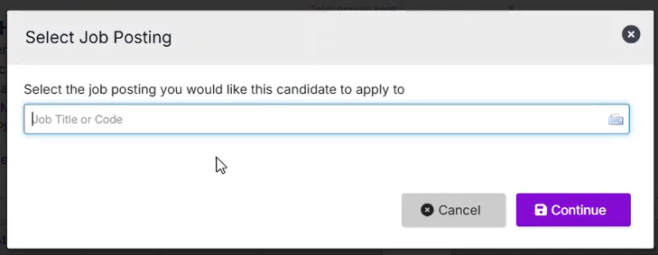
If the candidate is not already associated with a job, the Select Job Posting window opens. Search for and select an active job posting, then click Continue.
If the candidate is already associated with a job, ROSI uses that job automatically and the Select Job Posting step is skipped.
Available job postings include roles with a posting status of Normal-Int./Ext. Applicants, External, Limited, or On Hold (when an external ATS is connected via Kombo).
-
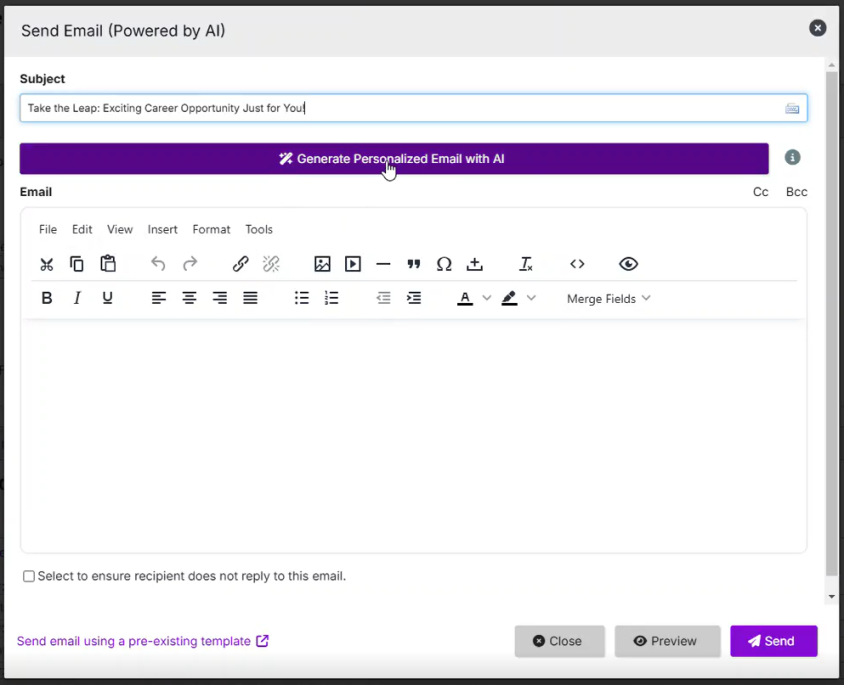
Enter or select a Subject line for your email.
-
Click Generate Personalized Email with AI to create a personalized outreach email.
ROSI uses the candidate profile and selected job to generate a message tailored to the candidate. Generation may take a few moments depending on the length of the job description and candidate profile.
-
Review the generated message and make any edits you want. The rich text editor supports formatting, merge fields, and media attachments.
-
Click Preview to preview the email.
-
(Optional) Enter CC or BCC recipients. The Cc and Bcc fields are located to the right of the email body area.
Tip: For tracking purposes, it may be helpful to BCC yourself on outreach emails.
-
Click Send.
A confirmation message briefly appears in the top-right corner of the page. The sent email is recorded in the candidate's Resume Profile under the History tab.
Tip: Below the Contact button, Recruit displays the last outreach date, the last user to send a ROSI outreach email, and the total number of outreach emails sent.
What to expect
-
ROSI-generated content is a starting point — you can fully edit the message before sending
-
Outreach emails are sent from the logged-in user's email address
-
If the candidate does not have an email address on file, the Contact button may not be available
-
The required number of days between outreach attempts to the same candidate (configured by your administrator) applies to this workflow
Enablement: Administrators can manage this feature in Administration > Settings > ROSI Features > ROSI Outreach.
For more information about ROSI Outreach, including bulk outreach from sourcing workflows, see ROSI Outreach.