ROSI Outreach
ROSI Outreach allows recruiters to generate and send personalized outreach emails to candidates using AI—either individually or in bulk.
ROSI uses job and candidate details to create tailored messages, helping teams engage more candidates quickly while maintaining a professional and relevant tone.
Walk through our Guided Demo for details.
Where to use ROSI Outreach
-
Source with ROSI – Select multiple candidates and send outreach in bulk
-
Candidate Resume Profile – Generate and send outreach to an individual candidate
Using ROSI Outreach in Source with ROSI
After searching and filtering candidates in Source with ROSI, select candidates using the checkboxes next to their profiles, or click select all.
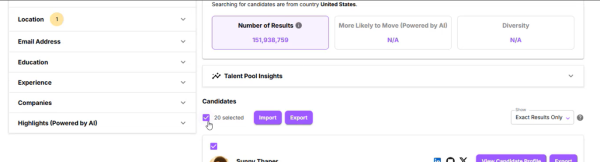
Results per page determine how many candidates can be selected at once (up to 50).
Click Import to view candidates to import (vs. those previously imported).
Click Import and Outreach to begin the outreach workflow.
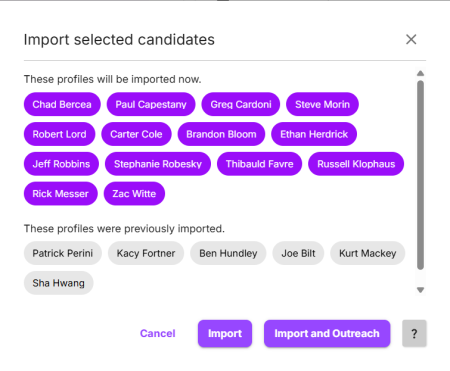
-
Select a job by entering the title or code with %%. ROSI uses the job description to personalize each message.
-
Enter or select a subject line.
-
Click Generate with ROSI to create personalized messages for each selected candidate.
-
Selected candidates are imported into Recruit's ATS, and draft outreach emails are created.
When messages are ready, a notification appears with a link to review them.
Reviewing and sending outreach
Generated outreach messages are managed in the Task List, where a card is created for each job.
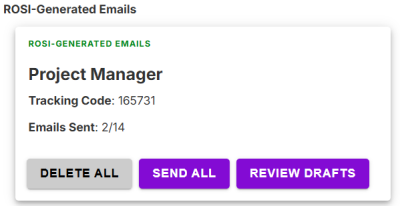
Each card shows the tracking code and the number of emails sent or in draft (sent/total).
Note: A maximum of 100 ROSI Outreach cards can exist at one time. When this limit is reached, action is required before creating new outreach batches.
From the Task List, you can:
-
Review Drafts – Open and edit individual messages, preview, or send
-
Send All – Send all generated emails
-
Delete All – Remove all drafts (cannot be undone)
Sent emails are recorded in the candidate's Resume Profile under the History tab.
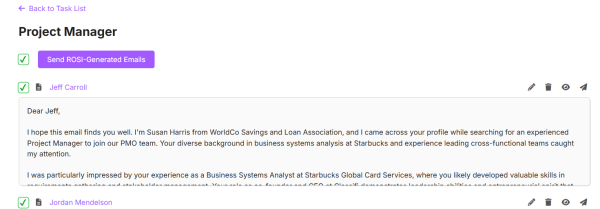
In the review screen, each candidate's outreach message is displayed as a draft.
From this screen, you can:
-
Select multiple candidates and click Send ROSI-Generated Emails to send messages in bulk
-
Select individual candidates to send outreach one at a time
-
Use the action icons to view the candidate resume, open the Candidate Resume Profile, edit, preview, delete, or send the email
Using ROSI Outreach in Candidate Profiles
ROSI Outreach can also be used from the Candidate Resume Profile to generate outreach for an individual candidate.
For step-by-step instructions, see Contact from Candidate Profile.
Enablement and settings
Administrators can manage ROSI Outreach in Administration > Settings > ROSI Features > ROSI Outreach.
The ROSI Outreach settings contain two independent visibility controls and additional configuration options:
Visibility settings (each can be toggled independently):
-
Show Contact (ROSI Outreach) button — Controls whether the Contact button is displayed on the Candidate Resume Profile page
-
Show Import & Outreach button — Controls whether the Import & Outreach button is displayed in the bulk import modal for users with the Source with ROSI permission
Additional settings:
-
Set the required number of days between outreach attempts to the same candidate
-
Define company values used to guide ROSI-generated outreach content
For step-by-step instructions on configuring these settings, see ROSI Outreach Settings.
Tracking outreach activity
Outreach activity — including total emails sent, unique recipients, and breakdowns by job, department, and user — can be tracked through the AI Outreach Analytics dashboard in Reporting & Analytics. For details on available outreach dimensions and measures, see AI Outreach analytics.