Schedule a panel interview
A panel interview is a singular interview with a fixed schedule — one time slot where one or more interviewers meet with the candidate simultaneously. Use this when all interviewers should be in the same meeting at the same time.
The scheduling form is organized into five steps:
Start scheduling
- Access the candidate's profile (Candidate Resume Profile).
- From the Take Action menu, select Schedule a 1:1 or Panel Interview.
The scheduling form opens.
Step 1: Event Details
Configure the calendar event that will be created for this interview.
- Event Title for Candidate — The title the candidate sees on the calendar event. Supports merge fields (e.g.,
{{Company.Name}}). - Event Description for Candidate — The description included in the candidate's calendar event. Supports merge fields, links (e.g., Event Agenda link, Reschedule or Cancel link).
- Add Teams Meeting Link — Generates a Microsoft Teams meeting link and includes it in the calendar event. This toggle is on by default. Turn it off if the interview will be in-person or use a different video tool. (This option only appears if your administrator has completed the MS Teams setup.)
Step 2: Interview Agenda
A panel interview is a singular interview with a fixed schedule. Configure the interview details:
- Duration — The length of the interview (default: 30 minutes).
- Interviewers — Required — Add interviewers who must attend. Only users with a linked calendar can be selected.
- Interviewers — Optional — Add interviewers whose attendance is preferred but not required.
Step 3: Messages to Candidates
Configure the emails sent to the candidate throughout the scheduling lifecycle. Each message type has a default template that can be customized using the built-in email editor with merge fields.
- Request to Schedule — Sent when the candidate is asked to select an interview time (self-scheduling mode only).
- Reminder to Schedule — Sent if the candidate has not yet responded. Can be toggled on or off.
- Scheduling Confirmation — Sent when the interview is confirmed.
- Day before Interview Reminder — Sent the day before the scheduled interview.
- Interview Updated — Sent if the interview details are changed after scheduling.
- Cancelation — Sent if the interview is cancelled.
Click the edit icon next to any message to customize the subject line, reply-to address, and email body.
Step 4: Messages to Interviewers
Configure the emails sent to interviewers:
- Scheduling Confirmation — Sent when an interviewer is confirmed. The candidate's Primary Resume is attached.
- Day before Interview Reminder — Sent the day before the scheduled interview.
- Cancelation — Sent if the interview is cancelled.
Step 5: Booking Availability
Choose how the interview time is determined:
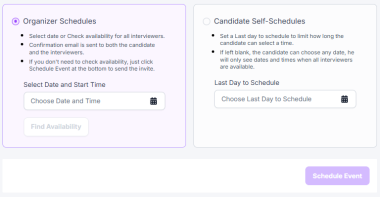
Organizer Schedules
The organizer selects the interview time. Options:
- Select a date and start time directly, or click Find Availability to view a grid of available time slots across all interviewers.
- The availability grid shows time slots by day with a time zone selector. Select a slot and click Confirm.
- If you don't need to check availability, just click Schedule Event at the bottom to send the invite.
- Confirmation email is sent to both the candidate and the interviewers.
Candidate Self-Schedules
The candidate chooses their own interview time from available slots.
- Last Day to Schedule — Set a deadline for when the candidate must select a time. If left blank, the candidate can choose any date — they will only see dates and times when all interviewers are available.
- The candidate receives the "Request to Schedule" email with a link to select their preferred time.
Confirm and schedule
Click Schedule Event to finalize the interview. The system will:
- Create the calendar event for all interviewers
- Send confirmation emails to the candidate and interviewers
- If MS Teams is enabled, include the Teams meeting link in the event
- Attach the candidate's Primary Resume to the interviewer confirmation email
- Record the interview in the candidate's History tab and on the Interviews Management page
Key information
- Your user account must have the Organizer scheduling user type to initiate interviews. See Scheduling user types.
- Only users with a linked calendar can be selected as interviewers.
- The scheduling action records an entry in the candidate's History tab.
- Organizer notification — The interview organizer receives event status notifications but does not receive the interviewer confirmation email unless they are also listed as an attendee. To ensure the organizer receives the full confirmation, add them as an interviewer on the interview.
- Logo upload in email editor — Custom logo upload in the scheduling email editor is not yet available.