Schedule a sequential interview
A sequential interview schedules a series of back-to-back interviews where the candidate meets with different interviewers one after another. The interview agenda is built from time blocks — each containing one or more interviews — with configurable breaks between them.
Note: Sequential interviewing requires the Sequential Interviewing feature to be enabled for your organization. Contact your account representative to enable this feature.
Guided demo: See sequential interviewing in action: Sequential Interviewing guided demo
The scheduling form is organized into five steps:
Start scheduling
- Access the candidate's profile (Candidate Resume Profile).
- From the Take Action menu, select Schedule Sequential Interview.
The Scheduling Sequential Interview page opens.
Step 1: Event Details
Configure the calendar event details. These fields work the same as in panel interview scheduling:
- Event Title for Candidate — Calendar event title (supports merge fields).
- Event Description for Candidate — Calendar event description (supports merge fields and links, including Event Agenda link and Reschedule or Cancel link).
- Add Teams Meeting Link — Generates a Microsoft Teams meeting link (on by default). Only appears if your administrator has completed the MS Teams setup.
Step 2: Interview Agenda
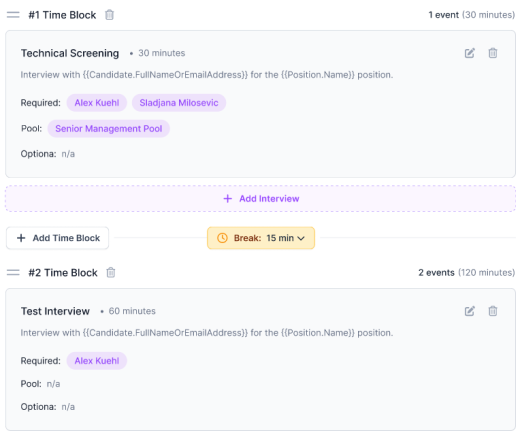
The interview agenda consists of time blocks that contain interviews. Time blocks can be reorganized (drag to reorder). Interviews within a time block can occur in any order.
Build the agenda
The agenda starts with one empty time block. Build your sequence:
- Click + Add Interview within a time block to add an interview step.
- In the Add Interview dialog, configure:
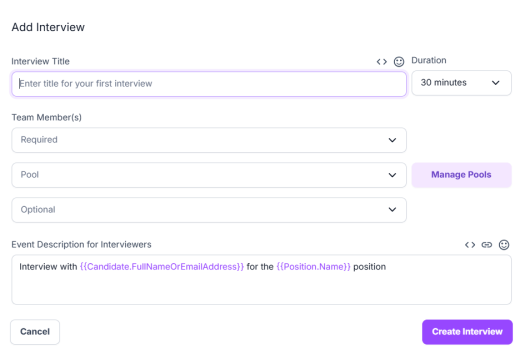
- Interview Title — A descriptive name (e.g., "Technical Screening", "Culture Fit").
- Duration — Length of this interview step (default: 30 minutes).
- Team Member(s) — Required — Interviewers who must attend this step.
- Team Member(s) — Pool — Select from an interviewer pool (see Interviewer pools below). Click Manage Pools to create or edit pools.
- Team Member(s) — Optional — Interviewers whose attendance is preferred but not required.
- Event Description for Interviewers — Description included in the interviewer's calendar event (supports merge fields).
- Click Create Interview to add the interview to the time block.
- To add more interviews within the same time block, click + Add Interview again.
- To add another time block, click + Add Time Block.
- To add a break between time blocks, click Add Break. Select a duration (5, 10, 15, 30, 45, or 60 minutes) from the dropdown. You can also remove a break.
Tip: The total agenda time (sum of all interview durations plus breaks) is displayed on each time block and updates dynamically as you make changes.
Interviewer pools
Interviewer pools let you define a group of interviewers and specify how many are required for a time block. The system selects from available pool members based on calendar availability.
To manage pools, click Manage Pools on the Pool field. From the Manage Pools dialog you can:
- Create new Pool — Enter a pool name, add interviewers (type-ahead search), and specify the number of required attendees. Click Create Pool.
- Edit a pool — Change the pool name, add/remove members, or adjust the required count. The dialog shows how many events currently use this pool.
- Delete a pool — Remove a pool that is no longer needed.
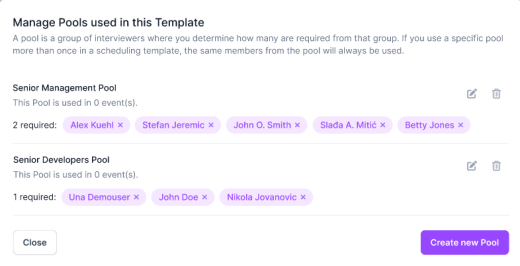
If you use a specific pool more than once in a scheduling template, the same members from the pool will always be used.
Step 3: Messages to Candidates
Configure the emails sent to the candidate. These work the same as in panel interview scheduling:
- Request to Schedule
- Reminder to Schedule (toggleable)
- Scheduling Confirmation
- Day before Interview Reminder
- Interview Updated
- Cancelation
Step 4: Messages to Interviewers
Configure the emails sent to interviewers:
- Scheduling Confirmation
- Day before Interview Reminder
- Cancelation
Step 5: Booking Availability
Choose how the interview time is determined. Options are the same as for panel interviews:
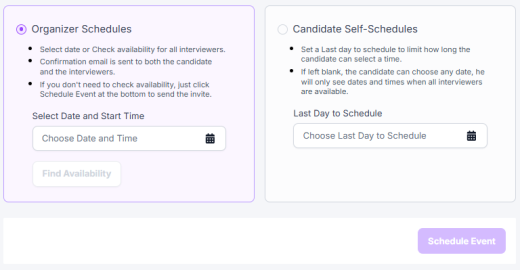
- Organizer Schedules — Select a date/time directly or use Find Availability to view available slots.
- Candidate Self-Schedules — Set a Last Day to Schedule and let the candidate choose from available times.
Confirm and schedule
Click Schedule Event to finalize the sequential interview. The system schedules each time block in sequence with breaks between them.
Prerequisites
- The Sequential Interviewing feature must be enabled for your organization.
- The Scheduling Service must be enabled.
- Your user account must have the Organizer scheduling user type.
- All interviewers (or pool members) must have a linked calendar.
Coming soon
- Reusable interview templates — Save and reuse interview sequences by role or department.
- Template Name and Scheduling Organizer fields — These fields will be added to the sequential scheduling form in a future release.
- Merge field improvements — Some merge fields (such as ReqNumber and Candidate Activity Stream Link) may not resolve in scheduling email templates. Fixes are in progress.
- Logo upload in email editor — Custom logo upload in the scheduling email editor is planned for a future release.
- Custom links and buttons in interviewer emails — Custom links and buttons may not render correctly in interviewer email notifications. A fix is in progress.